Leave A Message
If you are interested in our products and want to know more details,please leave a message here,we will reply you as soon as we can.

FAQ
An outdated firmware on a PoE switch can lead to various issues, including security vulnerabilities, compatibility problems, or performance inefficiencies. Here’s how to address the problem of an outdated PoE switch firmware:
1. Check for Firmware Updates
Visit the Manufacturer’s Website: Go to the switch manufacturer's support page and search for the latest firmware version for your specific PoE switch model.
Check Release Notes: Review the release notes to see what improvements, bug fixes, and new features are included in the firmware update. This will help you decide whether the update is necessary for your use case.
2. Download the Latest Firmware
Ensure Compatibility: Before downloading, verify that the firmware is compatible with your specific switch model and hardware version. Some firmware updates are model-specific or have different versions for different hardware revisions.
Save the Firmware File: Download the firmware file to your computer in a safe location, typically a .bin or .img file format.
3. Backup Current Configuration
Save the Current Configuration: Before updating the firmware, it's crucial to back up your current configuration settings. This ensures you can quickly restore your settings if something goes wrong during the update.
Export Settings File: Most managed PoE switches allow you to export the current configuration as a file from the switch’s web interface or command-line interface (CLI).
4. Connect to the Switch's Management Interface
Access the Web Interface or CLI: Log into the switch’s management interface using a web browser or command-line interface (SSH or Telnet). Ensure you have administrator privileges to perform the update.
Ensure Stable Connection: Make sure your connection to the switch is stable to avoid interruptions during the firmware update process.
5. Update the Firmware
Locate the Firmware Update Option: In the switch’s management interface, find the option for firmware update or system upgrade. This is usually located under the "System" or "Administration" section.
Upload the Firmware File: Select the downloaded firmware file from your computer and upload it to the switch through the interface.
Follow the Update Process: The switch will begin the update process. Do not power off the switch or interrupt the process while the update is in progress, as this can corrupt the firmware or render the switch inoperable.
6. Restart the Switch
Reboot the Switch: Once the firmware update is complete, the switch will typically need to be restarted for the changes to take effect. Follow the prompt to reboot the switch, or manually reboot if needed.
Check Power and Connections: Ensure that all connected devices, especially those powered by PoE, remain connected and powered during the reboot.
7. Verify the Firmware Update
Confirm the New Firmware Version: After the switch reboots, log back into the management interface and verify that the firmware has been updated to the latest version. This information is usually displayed in the system information section.
Test Switch Functionality: Ensure that the switch is functioning correctly, and PoE devices are receiving power as expected. Check for any new features or performance improvements that were part of the firmware update.
8. Restore Configuration (If Needed)
Reapply Configuration Settings: If the firmware update reset the switch to its factory defaults, you can restore the saved configuration file to reapply your previous settings. This should bring the switch back to its original setup with the new firmware in place.
9. Monitor for Issues
Monitor Performance: After the update, monitor the switch for any performance issues, such as unexpected reboots, connectivity problems, or PoE power delivery issues.
Check for Logs: Use the switch’s log or system status feature to check for any error messages or warnings related to the firmware update.
10. Schedule Regular Firmware Checks
Implement Regular Updates: Make it a practice to regularly check for firmware updates, especially for critical infrastructure like PoE switches. Staying up to date helps ensure that security vulnerabilities are patched and new features are available.
Automate Notifications: If possible, set up automatic notifications from the manufacturer for when new firmware updates are released.
By following these steps, you can successfully solve the problem of outdated firmware on your PoE switch and ensure it continues to operate efficiently, securely, and with the latest features.
Managing a network switch via a web interface can sometimes be problematic due to various issues related to connectivity, browser compatibility, misconfigurations, or even switch firmware. Below is a guide to help resolve common problems when managing a switch through its web interface:
1. Check Network Connectivity
Ping the Switch: Verify that your computer can reach the switch by pinging its IP address. If the switch doesn’t respond, there may be a network issue or incorrect IP settings.
Command: Open a command prompt and type ping [switch IP address].
Physical Connection: Ensure that the switch and the management device (computer) are on the same network or VLAN and properly connected (either directly via an Ethernet cable or through the network).
Correct IP Configuration: Ensure the management computer and the switch are configured with compatible IP addresses, subnet masks, and default gateways.
2. Verify Web Interface Access Settings
Enable Web Management: Some switches may have web management disabled by default. Check if web management (HTTP/HTTPS) is enabled via the console or another management method (e.g., CLI, SSH, or Telnet).
If disabled, enable it using the appropriate command or setting within the switch’s configuration.
Correct Port Number: Make sure you're accessing the correct port. If the switch is using a custom management port (e.g., 8080 for HTTP or 8443 for HTTPS), include the port number in the URL (e.g., http://[switch IP]:8080).
3. Check Browser Compatibility
Browser Choice: Some switches have web interfaces that are optimized for specific browsers (e.g., Chrome, Firefox, or Internet Explorer). If the interface isn't loading properly, try using a different browser.
Browser Version: Ensure you are using a modern browser with support for current web standards. Older browsers may not support newer web-based switch management interfaces.
Clear Browser Cache: Cached files may cause issues. Clear the browser cache and reload the page to see if the issue resolves.
4. Use HTTPS Instead of HTTP
Secure Access: If the switch supports HTTPS, always use it for secure web management. If the web interface is not accessible via HTTP, try accessing it via HTTPS (e.g., https://[switch IP]).
Self-Signed Certificate Warnings: If the switch uses a self-signed SSL certificate, your browser may display a security warning. You can safely proceed by accepting the certificate if you trust the switch’s network environment.
5. Reset the Switch's Web Interface
Reboot the Switch: Sometimes, a simple reboot can resolve issues with the web interface, especially if the switch’s internal web server has crashed or become unresponsive.
Reset the Web Service: If possible, use the switch’s CLI or another management interface (e.g., SSH) to restart the web management service without rebooting the switch entirely.
--- For example, some switches support the command to restart the HTTP/HTTPS service.
6. Update Firmware
Outdated Firmware: Many issues with the web interface can be resolved by updating the switch’s firmware to the latest version. Manufacturers regularly release updates that improve performance, resolve bugs, and enhance security.
Firmware Compatibility: Make sure the firmware is compatible with your switch model and hardware version. After updating the firmware, clear the browser cache before trying to access the web interface again.
7. Check for IP Conflicts
Duplicate IPs: Ensure that no other device on the network is using the same IP address as the switch. IP conflicts can cause access issues or unexpected behavior when trying to connect to the switch.
Static IP Configuration: If the switch is using a static IP address, verify that it's in the correct range for your network and doesn’t conflict with your DHCP scope or other devices.
8. Reset Credentials and Access Permissions
Correct Username/Password: Ensure you're using the correct username and password. If you've forgotten them or lost access, you may need to reset the switch to factory defaults.
Administrator Privileges: Some switches allow different levels of access (admin, read-only). Ensure you are logging in with an account that has the necessary administrative privileges to manage the switch.
Account Lockout: If too many failed login attempts were made, the account might be temporarily locked. Wait for the lockout period to expire, or reset the account via another management interface.
9. Disable Browser Add-Ons and Security Software
Browser Add-Ons: Some browser extensions (e.g., ad blockers or security plugins) may interfere with the proper loading of the web interface. Disable any unnecessary extensions while managing the switch.
Pop-up Blockers: Some switches use pop-up windows or additional tabs for configuration. Ensure that pop-up blocking is disabled, or whitelist the switch's IP address in your browser settings.
Security Software: Firewalls or antivirus software on your computer may block access to the switch’s web interface. Temporarily disable these programs to test if they are the cause of the issue.
10. Use Alternative Management Methods
Console or CLI Access: If the web interface is still inaccessible, use the console port (if available) or connect via Telnet/SSH to manage the switch through the command-line interface.
Management Software: Some switch vendors provide dedicated software tools for managing their switches, which can be an alternative to web-based management.
11. Factory Reset as a Last Resort
Factory Default Reset: If all else fails and you're unable to access the web interface or manage the switch, consider performing a factory reset. Be aware that this will erase all configurations, and you’ll need to reconfigure the switch from scratch.
--- Check the switch’s manual for instructions on how to perform a factory reset, either via a physical reset button or using a command-line command.
By following these steps, you should be able to diagnose and resolve most issues related to managing a switch via its web interface. If the issue persists, consider reaching out to the switch’s technical support team for further assistance.
Power over Ethernet (PoE) is a technology that enables Ethernet cables to transmit both data and electrical power to devices. This eliminates the need for separate power cables, simplifying installation and reducing costs. PoE is commonly used to power devices like IP cameras, wireless access points, VoIP phones, and other network devices. There are different PoE standards, such as IEEE 802.3af, 802.3at (PoE+), and 802.3bt (PoE++), which define the amount of power that can be delivered to connected devices, ranging from 15.4W to 90W.
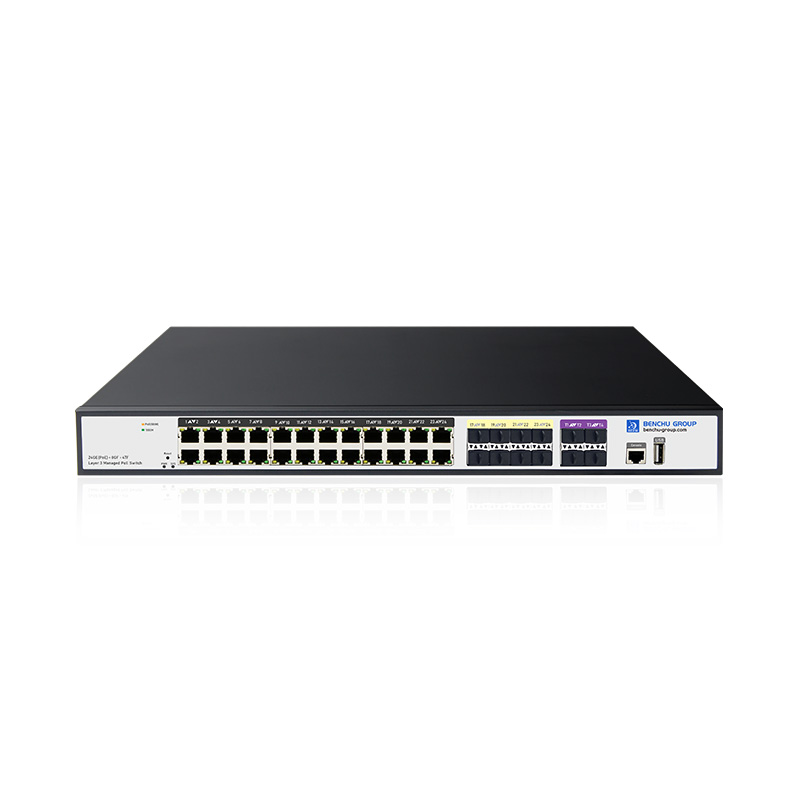
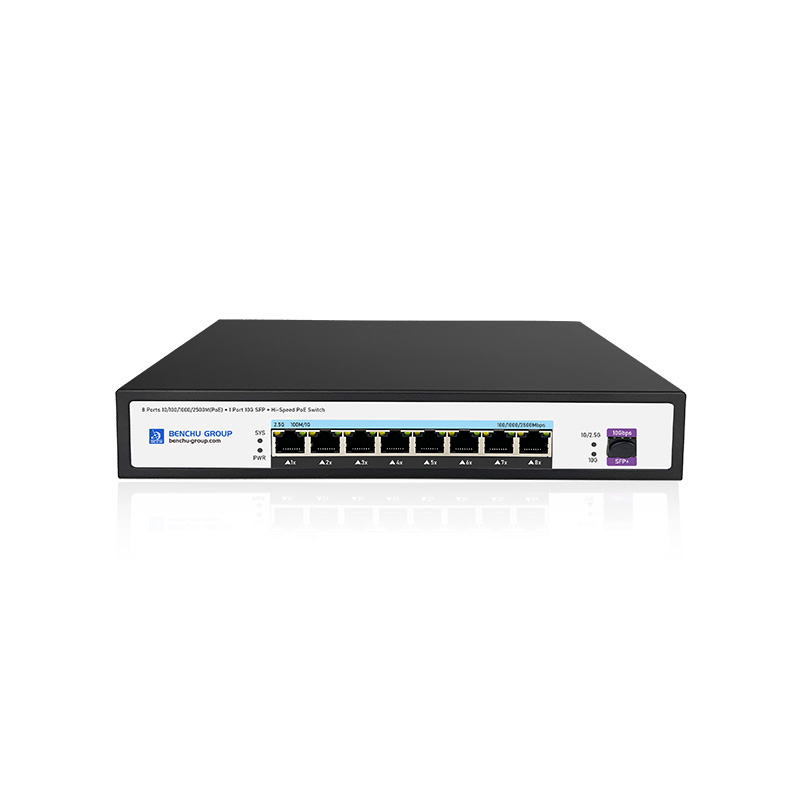
PoE switch is a network switch that provides Power over Ethernet (PoE) functionality, allowing both data and electrical power to be transmitted over a single Ethernet cable. This eliminates the need for separate power supplies for connected devices like IP cameras, wireless access points, VoIP phones, and other powered devices (PDs). PoE switches come in various types, including unmanaged, managed, and industrial-grade models, and they adhere to different PoE standards such as 802.3af (PoE), 802.3at (PoE+), and 802.3bt (PoE++), offering power outputs up to 90W.
Latency varies but is typically optimized for low-latency environments.
Yes, modular switches and stacking capabilities enable large-scale deployments.
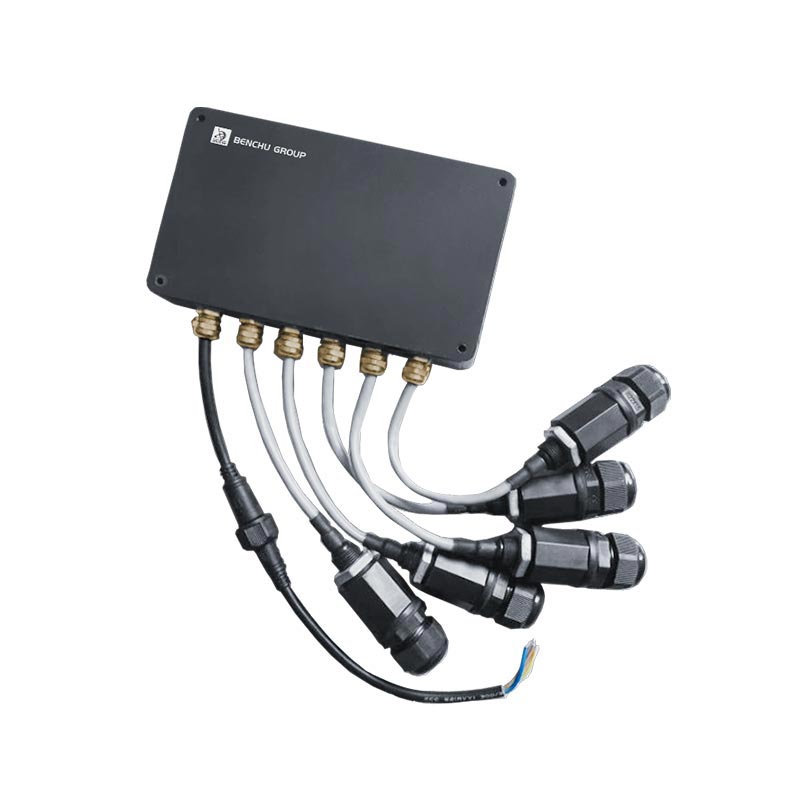
Industrial models comply with IP65/IP67 standards for dust and water resistance.
Yes, they are suitable for railways, highways, and metro systems.
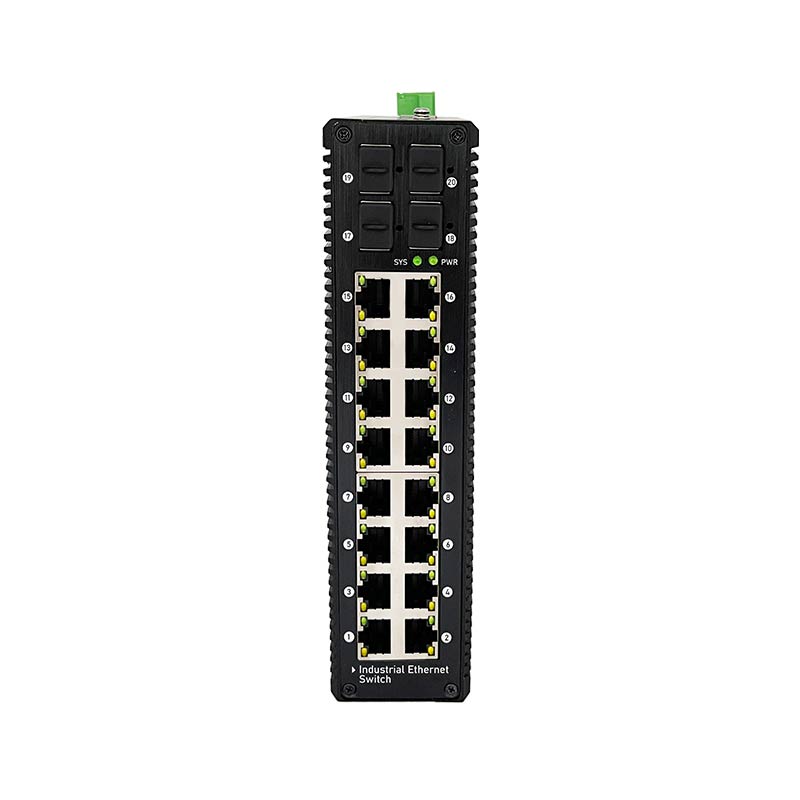
Features like vibration resistance, extended temperature ranges, and real-time communication protocols.
Yes, with fiber optic uplinks and wide-area coverage options.
Industrial-grade switches can handle the environmental conditions of marine setups.
Yes, bulk orders are eligible for discounts; contact sales for more details.
 E-Mail Us
 Call Us
 Address
5F, Block5, GuangmingGu Industrial Park, Matian Villiage, Guangming Disitrict, Shenzhen, China



 IPv6 network supported
 English